
热线
Call us at 6797 0778
for more information.
营业时间
早上9点 - 晚上9点 (工作日 & 公共假日前一天)
早上9点 - 下午6点 (周末 & 公共假日)

实时聊天
营业时间
早上9点 - 晚上9点 (工作日 & 公共假日前一天)
早上9点 - 下午6点 (周末 & 公共假日)

邮件
回应需要长达3天工作日
一般咨询
[email protected]
账单与缴费咨询
[email protected]

WhizComms Fibre Broadband provides residential subscribers with high-speed 10Gbps home fibre broadband plans at highly competitive prices. Powered by next-generation XGSPON technology and operating on Singtel’s trusted network infrastructure, our service delivers reliable and fast internet performance.
With symmetrical bandwidth, users benefit from equal download and upload speeds, ensuring a seamless experience across all online activities, including video conferencing, streaming, and online gaming.
All WhizComms broadband plans include:
Enjoy blazing fast and reliable connectivity with high-speed fibre broadband that delivers consistent performance throughout the day, even during peak hours. Whether it is browsing, streaming, gaming, or video conferencing, you can expect a smooth and uninterrupted experience.
Connect multiple devices with ease as symmetrical upload and download speeds support simultaneous usage across your household. From work to entertainment, everyone can stay connected without slowdowns.
Save more with affordable monthly plans available on 12- and 24-month contracts, offering excellent value without compromising on speed or reliability. Enjoy premium fibre broadband at a price that fits your budget.
Pay less through a fully digital experience with e-commerce sign-ups, electronic registration, and e-billing. By operating without physical retail stores and encouraging self-service, cost savings are passed directly to you.
Choose only what you need with a no-frills approach that gives you the flexibility to select your preferred wireless routers and accessories. This keeps prices low while allowing you to customise your home network setup to suit your needs.
The typical speeds represent the realistic average speed that users typically experience during everyday usage in real-world conditions. The typical download speed range is computed to reflect that, at least 90% of the time, a user should experience the lower bound speed or higher. For more information, or latest updated typical broadband speeds, click here.
The following speed test results are based on Singtel’s measured readings across peak and off-peak hours. It is validated from Q2 2026.
*Peak hours are generally from 7pm – 1am, while off-peak hours are generally from 1am – 7pm.
2.5Gbps (GPON) Broadband
Note: Each device connection will be up to 1Gbps, with a total maximum bandwidth of 2.5Gbps.
Typical Local Download Speed for Wired Connection: 941.99 – 950.88 Mbps
10Gbps (XGSPON) Broadband
Typical Local Download Speed for Wired Connection: 7758.46 – 7917.81 Mbps
Advertised speeds are maximum speeds that can be achieved under perfect conditions (e.g. no network congestion, minimal interference etc.), which are theoretical maximum speeds for optic fibre technology that we use today. However, the industry standard follows typical speeds.
The best plan for your home depends on your needs, existing equipment and how you want your WiFi set up.
No-Frills Plan
Choose our No-Frills Plan if you want to keep costs low and:
You will enjoy the same fast and reliable broadband service at our lowest price, but a wireless router is not included.
Router Plan
Choose our Router Plan if you prefer an all-in solution with your home broadband equipment set up by our field engineer.
All router plans includes:
Tip: For the best WiFi performance, connect your wireless router to a data point where possible.
Need wider WiFi coverage?
Our Router Plans come with a Mesh WiFi router to provide reliable WiFi coverage throughout your home. If you need wider coverage, you can add more Mesh WiFi routers to extend your coverage to more areas of your home.
As a general guide:
These are only general recommendations. Your WiFi coverage needs may vary depending on your home’s layout, walls, furniture, data point and power socket locations.
Please note:
Not sure which plan or how many Mesh WiFi routers you need? Contact our home broadband experts and we’ll be happy to recommend a suitable setup based on your home.
There are many factors that may affect wired and WiFi speeds. Some of them includes but not limited to: background applications taking up additional bandwidth, security software and firewalls interrupting network traffic, number of connected devices, environmental factors (e.g. brick/concrete walls, filled fish tanks, reflective surfaces etc), wireless router/end user device WiFi standard, distance between wireless router and end user device.
No. WhizComms provides a public dynamic address instead of using CGNAT. This means you get your own public IP address for your broadband connection, giving you greater flexibility for applications such as remote access, VPNs and home networking. Your IP address is dynamic and may change from time to time.
Interested subscribers may sign up online, then simply follow the sign up instructions.
The following information will be required during sign up:
An order confirmation email will be sent to your registered email address. Alternatively, you may log in to your WhizComms account and your pending order will be reflected. WhizComms provisioning department will call you within 3 working days to arrange for the broadband installation and service activation date.
Power & equipment: Ensure there are power sockets near the Fibre Termination Point (FTP) for the ONR and router. A safety-certified extension plug may be useful. As a precautionary measure, do not remove the green FTP caps before installation.
Installation appointment: If your home already has an FTP, only WhizComms installation is required. If not, an additional NetLink Trust (NLT) installation appointment will be required which will be arranged by us. WhizComms will then install and activate your broadband about 3 working days later (subject to installation slot availability).
Additional devices: WhizComms only installs the Optical Network Router (ONR) and wireless router(s) we provide. You are you are required to self-install other devices.
Subscribers may inform WhizComms to make arrangements with NetLink Trust to relocate the FTP nearer to available electrical sockets (preferably to the main TV location). Note that the relocation of the FTP is chargeable by NetLink Trust (NLT) and WhizComms’ installation appointment will be postponed until the relocation is completed. Please refer to the NLT charges.
WhizComms will not be able to assist subscribers in installing devices not sold by us. Subscribers are strongly advised to procure wireless and mesh routers/ access points from WhizComms unless they are familiar and confident with handling 3rd party wireless and mesh routers/ access points.
Yes, self-installation option available for those who prefer to do their own WiFi setup, or to avoid installation fee. Simply send an email to [email protected] and indicate your request.
Step 1. Check Optical Network Router box the following items:

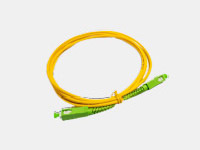
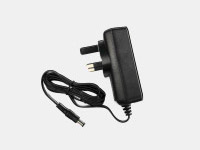
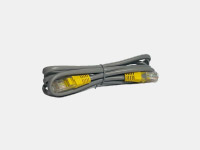
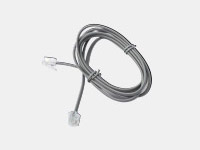
Step 2. Connect Fibre Patch Cord from Fibre Termination Point (FTP) to the Optical Network Router (ONR). You should hear a ‘click’ sound when inserting the fibre patch cord into the FTP and ONR.

Note: The location of ports and buttons may vary depending on your ONR model. If you need help locating them, please identify your ONR model and refer to the corresponding user guide on our 文件下载 page.
Step 3. Connect the power adapter from the ONR’s Power port to your home electrical outlet and power on.
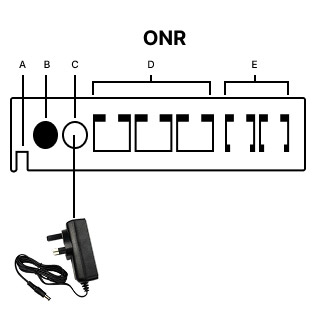
Step 4. Verify the connection is successful. Check the ONR LED indicators to confirm that your connection is working normally. Depending on your ONR model, the location and availability of LED indicators may vary. In general, the LED lights should match the normal statuses shown below.
| ONR LED Indicator | Normal Status | Error Status |
| POWER | Green | No Light |
| PON / LINK / AUTH | Green | Red / No Light |
| INTERNET | Green | 2.5Gbps – No Light 3Gbps/10Gbps – No Light or FLashing Green |
| LAN | Green / Flashing Green | No Light |
| TEL 1 (if applicable) | Green / Flashing Green | No Light |
Note: Some ONR models may not include all LED indicators shown above. Please refer to the indicators available on your ONR.
Step 5. Connect the LAN cable from the wireless router or device LAN Port to the ONR LAN Port (Refer to your router’s user manual for set up).
Note: 10Gbps Broadband subscribers should connect to the ONR 10G LAN Port for the best experience.
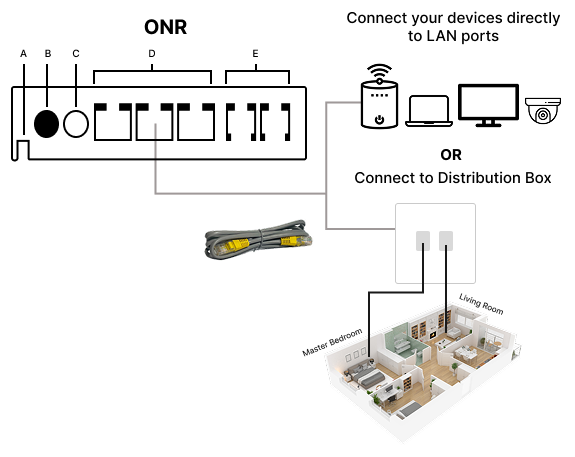
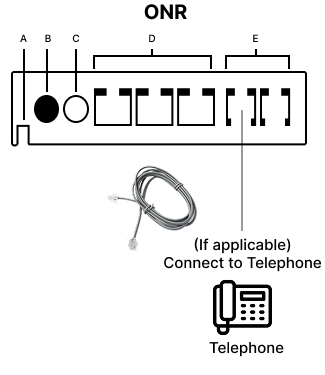
Step 6. [If applicable] Connect the Phone Cable from your phone to TEL 1 Port. Reach out to us for troubleshooting if it does not work properly.
All new broadband installations and relocations require NetLink Trust (NLT) Service Activation Fee and WhizComms Installation Fee (unless otherwise stated). Some broadband renewals may also require these charges. Additional fees may apply if extra work is needed, as determined by NLT or WhizComms.
Refer to our promotional terms and conditions and general terms and conditions for a full list of one-time charges (if applicable)
We accept payment through VISA and Mastercard credit/debit card and GIRO only.
For VISA and Mastercard credit/debit card payment, you are required to enter your card information during sign up and a charge of $0.10 will be made for validation purposes. This $0.10 charge will be refunded back to you within 7 days. Your subscription fee and one-time fees (if applicable) will not be charged during sign up. They will be charged on your first bill instead.
For payment via GIRO, please download and complete the inter-bank GIRO form from our Broadband Download page. The original copy of the GIRO form must be mailed to our office address for processing of application. Digital copy and digital signature will not be accepted.
Whiz Communications Pte Ltd
150 Kampong Ampat, #04-02 KA Centre
Singapore 368324
How to change payment method:
a) Log in to your WhizComms account.
b) Select My Profile > Payment Method > Change.
One-Time Payment
If you need to make an ad hoc one-time payment, you can do so via PayNow.

UEN: 201614035C
Reference: Your Billing ID (6005xxxxxx)
View your monthly e-Bill by logging in to your WhizComms account, then select ‘e-Bills’.
Subscribers whose contract is left with one month before expiry will receive renewal email and SMS with the latest home broadband plans available for renewal. Subscribers may follow the renewal instructions stated in the email.
Alternatively, subscribers can choose to contact us regarding renewal.
Any expired contract will be auto-renewed on a rolling month contract based on each speed’s auto renewal price (T&C 1.8) until we receive instructions to renew or terminate our service.
Yes, you can request to transfer your broadband account to another person. A $54.50 account transfer fee applies.
Simply download and complete the Account Transfer Form from our Broadband Downloads page, then email the completed form to [email protected].
Our team will review your request and guide you through the next steps.
Your first bill includes the prorated subscription fee your first month, the full subscription fee for the second month, and any applicable one-time charges such as activation or installation fees.
There are no termination fees if your contract has already ended. Early termination charges will apply if you cancel before your contract expires.
The early termination fee will be the remaining value of your contract period.
Please email your broadband termination request to [email protected]. A minimum 30-day notice period is required from the date of your request.
A termination confirmation email will be sent to you within a few days, confirming your effective termination date and any outstanding amount payable.
Any outstanding amount must be paid in full within 7 days from receiving the termination confirmation email.
The Optical Network Router does not need to be returned.
WhizComms Fibre Broadband provides residential subscribers with high-speed 3Gbps and 10Gbps home fibre broadband plans at highly competitive prices. Powered by next-generation XGSPON technology and operating on Singtel’s trusted network infrastructure, our service delivers reliable and fast internet performance.
With symmetrical bandwidth, users benefit from equal download and upload speeds, ensuring a seamless experience across all online activities, including video conferencing, streaming, and online gaming.
All WhizComms broadband plans include:
Enjoy blazing fast and reliable connectivity with high-speed fibre broadband that delivers consistent performance throughout the day, even during peak hours. Whether it is browsing, streaming, gaming, or video conferencing, you can expect a smooth and uninterrupted experience.
Connect multiple devices with ease as symmetrical upload and download speeds support simultaneous usage across your household. From work to entertainment, everyone can stay connected without slowdowns.
Save more with affordable monthly plans available on 12- and 24-month contracts, offering excellent value without compromising on speed or reliability. Enjoy premium fibre broadband at a price that fits your budget.
Pay less through a fully digital experience with e-commerce sign-ups, electronic registration, and e-billing. By operating without physical retail stores and encouraging self-service, cost savings are passed directly to you.
Choose only what you need with a no-frills approach that gives you the flexibility to select your preferred wireless routers and accessories. This keeps prices low while allowing you to customise your home network setup to suit your needs.
The typical speeds represent the realistic average speed that users typically experience during everyday usage in real-world conditions. The typical download speed range is computed to reflect that, at least 90% of the time, a user should experience the lower bound speed or higher. For more information, or latest updated typical broadband speeds, visit https//www.singtel.com/personal/support/broadband/typical-download-speeds.
The following speed test results are based on Singtel’s measured readings across peak and off-peak hours. It is validated from April to July 2025.
*Peak hours are generally from 7pm – 1am, while off-peak hours are generally from 1am – 7pm.
2.5Gbps (GPON) Broadband
Note: Each device connection will be up to 1Gbps, with a total maximum bandwidth of 2.5Gbps.
Typical Local Download Speed for Wired Connection: 904.36 – 905.22Mbps
3Gbps (XGSPON) Broadband
Typical Local Download Speed for Wired Connection: 2503.03 – 2706.91Mbp
10Gbps (XGSPON) Broadband
Typical Local Download Speed for Wired Connection: 7573.90 – 7785.33Mbps
Advertised speeds are maximum speeds that can be achieved under perfect conditions (e.g. no network congestion, minimal interference etc.), which are theoretical maximum speeds for optic fibre technology that we use today. However, the industry standard follows typical speeds.
There are many factors that may affect wired and WiFi speeds. Some of them includes but not limited to: background applications taking up additional bandwidth, security software and firewalls interrupting network traffic, number of connected devices, environmental factors (e.g. brick/concrete walls, filled fish tanks, reflective surfaces etc), wireless router/end user device WiFi standard, distance between wireless router and end user device.
Interested subscribers may sign up online, then simply follow the sign up instructions.
The following information will be required during sign up:
An order confirmation email will be sent to your registered email address. Alternatively, you may log in to your WhizComms account and your pending order will be reflected. WhizComms provisioning department will call you within 3 working days to arrange for the broadband installation and service activation date.
Power & equipment: Ensure there are power sockets near the Fibre Termination Point (FTP) for the ONR and router. A safety-certified extension plug may be useful. As a precautionary measure, do not remove the green FTP caps before installation.
Installation appointment: If your home already has an FTP, only WhizComms installation is required. If not, an additional NetLink Trust (NLT) installation appointment will be required which will be arranged by us. WhizComms will then install and activate your broadband about 3 working days later (subject to installation slot availability).
Additional devices: WhizComms only installs the Optical Network Router (ONR) and wireless router(s) we provide. You are you are required to self-install other devices.
Subscribers may inform WhizComms to make arrangements with NetLink Trust to relocate the FTP nearer to available electrical sockets (preferably to the main TV location). Note that the relocation of the FTP is chargeable by NetLink Trust (NLT) and WhizComms’ installation appointment will be postponed until the relocation is completed. Please refer to the NLT charges.
WhizComms will not be able to assist subscribers in installing devices not sold by us. Subscribers are strongly advised to procure wireless and mesh routers/ access points from WhizComms unless they are familiar and confident with handling 3rd party wireless and mesh routers/ access points.
Yes, self-installation option available for those who prefer to do their own WiFi setup, or to avoid installation fee. Simply send an email to [email protected] and indicate your request.
Step 1. Check Optical Network Router box the following items:
Step 2. Connect Fibre Patch Cord from Fibre Termination Point (FTP) to the Optical Network Router (ONR). You should hear a ‘click’ sound when inserting the fibre patch cord into the FTP and ONR.
Note: The location of ports and buttons may vary depending on your ONR model. If you need help locating them, please identify your ONR model and refer to the corresponding user guide on our 文件下载 page.
Step 3. Connect the power adapter from the ONR’s Power port to your home electrical outlet and power on.
Step 4. Verify the connection is successful. Check the ONR LED indicators to confirm that your connection is working normally. Depending on your ONR model, the location and availability of LED indicators may vary. In general, the LED lights should match the normal statuses shown below.
| ONR LED Indicator | Normal Status | Error Status |
| POWER | Green | No Light |
| PON / LINK / AUTH | Green | Red / No Light |
| INTERNET | Green | 2.5Gbps – No Light 3Gbps/10Gbps – No Light or FLashing Green |
| LAN | Green / Flashing Green | No Light |
| TEL 1 (if applicable) | Green / Flashing Green | No Light |
Note: Some ONR models may not include all LED indicators shown above. Please refer to the indicators available on your ONR.
Step 5. Connect the LAN cable from the wireless router or device LAN Port to the ONR LAN Port (Refer to your router’s user manual for set up).
Note: 10Gbps Broadband subscribers should connect to the ONR 10G LAN Port for the best experience.
Step 6. [If applicable] Connect the Phone Cable from your phone to TEL 1 Port. Reach out to us for troubleshooting if it does not work properly.
Call us at 6797 0778
for more information.
营业时间
早上9点 - 晚上9点 (工作日 & 公共假日前一天)
早上9点 - 下午6点 (周末 & 公共假日)
营业时间
早上9点 - 晚上9点 (工作日 & 公共假日前一天)
早上9点 - 下午6点 (周末 & 公共假日)
回应需要长达3天工作日
一般咨询
[email protected]
账单与缴费咨询
[email protected]

营业时间
工作日 早上10点 - 下午5点
(公共假期前一天和当天除外)